
You have a website. Maybe it has been live for a month, maybe a year. You are starting to think about marketing it — a bit of social posting, perhaps some Google Ads, maybe just writing more and hoping. Before any of that, you need one thing in place: a way to know whether anything you try actually works. That is the whole job of Google Analytics, and this guide starts there — the why — before any jargon.
Why measure anything at all?
Without measurement, marketing a website feels like posting flyers into the dark. You share a link on Instagram — did anyone come? You write a blog post — did anyone read it? You pay for an ad — did it bring people who cared, or people who left in three seconds? Every one of those questions has a real answer, and the answers change what you do next.
Three examples of what measurement changes in practice:
- Where to spend your time. If two of your twenty pages bring in 80% of your visitors, you write more like those two — not more of everything.
- Where to spend your money. If Instagram sends 50 visitors a month and Google search sends 900, that is a budget decision made for you.
- Whether the site itself works. If plenty of people reach your contact page but nobody submits the form, the problem is the form, not the marketing.
The pattern behind all of these: analytics converts “I think” into “I know”, and it does it for free. That is the entire pitch.
What Google Analytics actually is
Google Analytics is a free tool from Google. You place a small snippet of code on your site (once), and from then on it records what happens: which pages people visit, where those people came from, what device they used, what they clicked, and whether they did the things you care about — bought something, filled the form, signed up. You then log into a dashboard and read the story back as charts and tables.
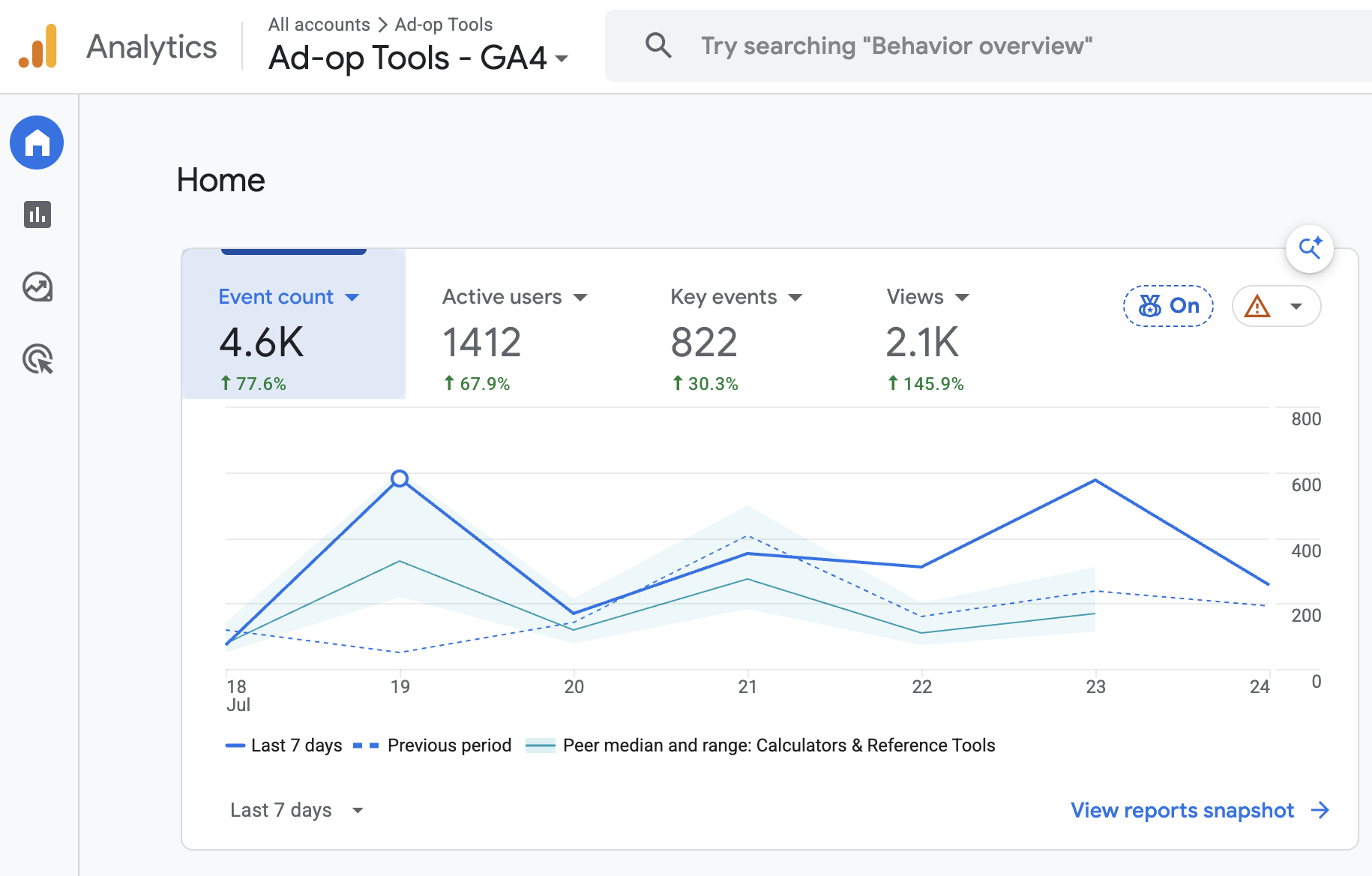
What it is not: it does not tell you who individual visitors are (no names, no emails — it works in anonymous aggregates), it does not improve your ranking on Google (that is a different discipline), and it does not fix anything by itself. It is the speedometer, not the engine.
The current version is called Google Analytics 4 — GA4 for short. If you read older tutorials mentioning “Universal Analytics”, that is the previous generation, retired in 2023. Everything below is GA4.
Who it’s for, and when to set it up
GA4 is not a specialist tool that becomes relevant once you are “serious”. The right audience is exactly you: a site owner who wants to know what is happening. And the right time is before you start marketing, for a simple reason — analytics can only describe what happens after it is installed. Set it up today and in a month you have a baseline; start your first campaign and you can see what it changed. Install it after the campaign and you are guessing forever about what “normal” looked like.
How to get set up (an afternoon, once)
- Create the account. Go to analytics.google.com, sign in with a Google account, and create an account and a property (one property = one website).
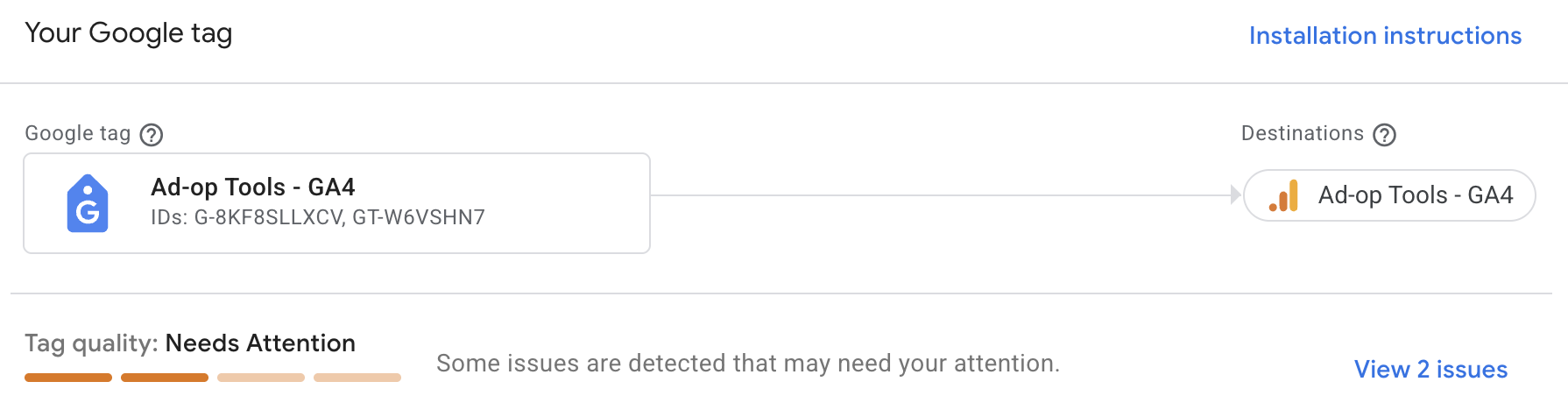
- Add the tag to your site. GA4 gives you a measurement ID (it looks like G-XXXXXXX). On Wix, Squarespace and Shopify you paste that ID into a settings field; on WordPress a plugin like Site Kit does it; on a hand-built site you paste the provided snippet into your pages.
- Check it works. Open your own site in one tab and GA4’s Realtime report in another. If you see yourself as a visitor, it is working.
- Wait. Reports become interesting after two to four weeks of data. This is the step everyone resents and nobody can skip.
One warning for later: the numbers will never exactly match other tools (your ad platform, Search Console, your shop’s own orders). That is normal, not broken — when it starts to matter, read Trusting your GA4 numbers.
The principles of web tracking (60 seconds)
It is worth knowing roughly how the magic works, because every quirk you will ever meet traces back to it. When someone opens a page on your site, the snippet — the tag — wakes up in their browser and sends a small message to Google called a hit: what page, what time, what device, where the visitor came from. To recognise a returning browser, the tag stores a random anonymous ID in a cookie. GA4 collects millions of these hits and aggregates them into the reports you read.
Two consequences worth remembering: measurement happens in the browser (so blockers and slow loads lose some hits), and the ID is per-browser (so you on your phone and you on your laptop look like two people).
That is also the honest disclaimer: web analytics is a very good approximation, not an audit. Roughly 10–15% of visits go uncounted on a typical site, and the same person on two devices counts twice. None of that stops the numbers being useful — trends and comparisons survive — but it is why GA4 will never exactly match your shop’s order count. When that starts to matter, read Trusting your GA4 numbers.
Common ways sites install it
All roads lead to the same tag; they differ in who does the work and how much control you get.
| Method | Effort | Best for |
|---|---|---|
| Platform field (Wix, Squarespace, Shopify) | Paste the G- ID once | Almost everyone starting out |
| WordPress plugin (e.g. Site Kit) | Install, connect Google account | WordPress sites without a developer |
| The snippet directly (gtag.js) | Paste code into your templates | Hand-built sites; full control |
| Google Tag Manager | One container, tags managed in a UI | Sites that will grow beyond one tag — see GTM & the dataLayer |
| Server-side | Real infrastructure | Later. Genuinely later — see server-side tracking |
Start with whichever row matches your site today. Moving between methods later is normal and does not lose your history.
The first three questions to ask it
When the data has had a few weeks to accumulate, resist the urge to look at everything. Answer three questions:
- How do people find me? (Reports › Acquisition — the channel breakdown: search, social, direct, referral)
- What do they look at? (Reports › Engagement › Pages and screens — your most and least visited pages)
- Do they do the thing I built the site for? (form submits, purchases, calls — this needs a little setup, covered in events and key events)
Everything else in GA4 is elaboration on those three questions — and the elaboration starts in part two.
Next: GA4 102 — Events, Sessions, Users and Reports
The working vocabulary: what GA4 counts, and how to read the four report areas without mixing up the denominators.